Before You Start
To publish through Amazon, you need three core assets ready:
- A finished manuscript, usually DOCX for ebook setup or print-ready PDF for paperback
- A front cover for ebook, plus a full wrap cover for paperback
- Book metadata: title, subtitle, author name, description, categories, keywords, and price
You can create these yourself, hire freelancers, or use a platform like SelfPublishing.pro to prepare files, generate metadata, validate EPUBs, and manage wider distribution beyond Amazon. If you are still deciding between Amazon-only and broad distribution, start with How to Self Publish a Book.
Step 1: Create or Sign In to Your KDP Account
Go to Kindle Direct Publishing and sign in with your Amazon account. If you do not already have one, create an account using the email address you want tied to your publishing business.
You will need to complete your author, tax, and payment information before Amazon can pay royalties. Do this before launch day so account verification does not slow you down.
Step 2: Prepare Your Manuscript File
For Kindle ebooks, Amazon accepts common manuscript formats such as DOCX and EPUB. For print books, a properly sized PDF is the safer choice because it preserves margins, fonts, page breaks, and trim size.
If you want the file-by-file detail, read How to Format Your Book for Amazon before you upload anything.
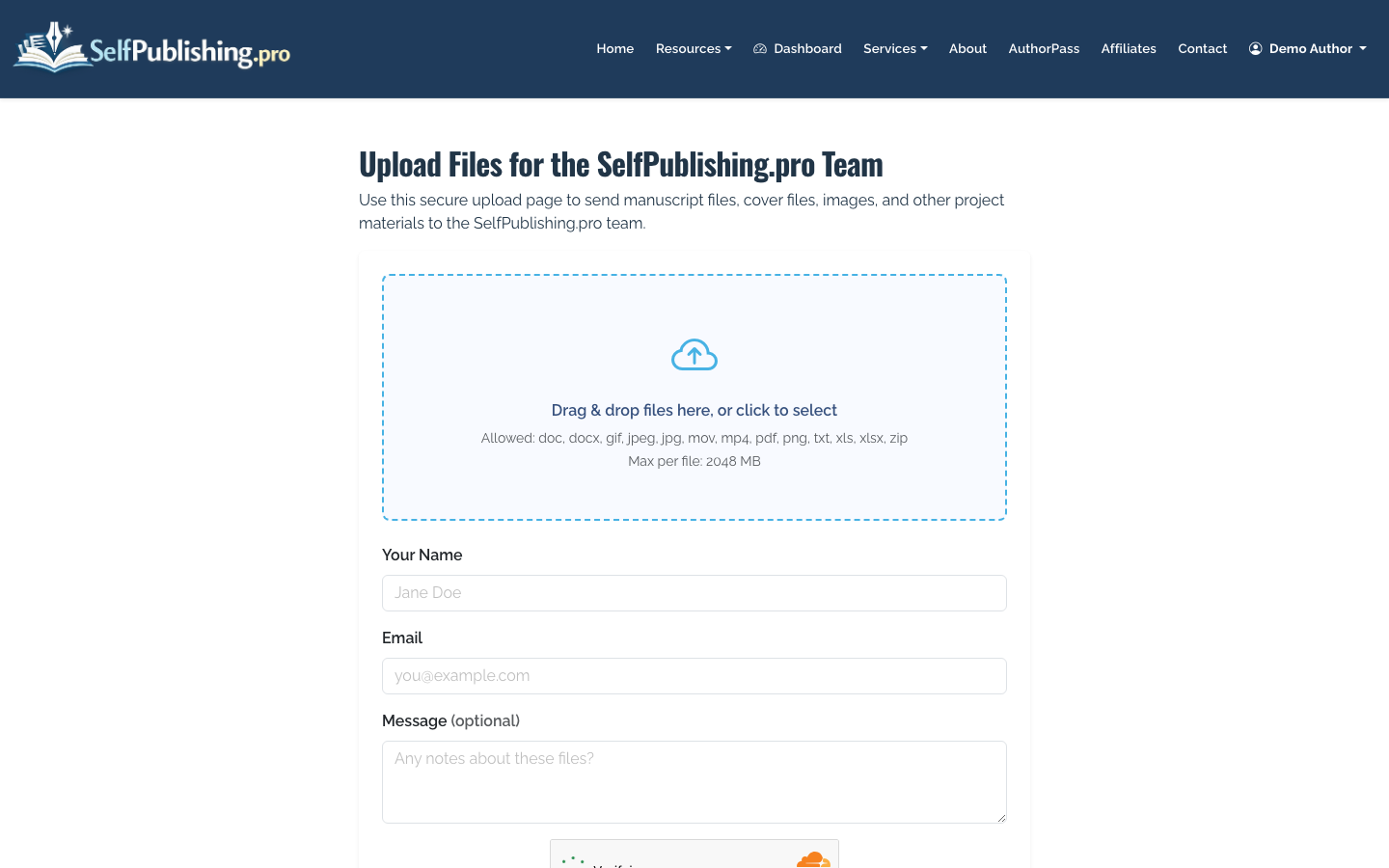
If your manuscript started as a PDF and you need to revise it, SelfPublishing.pro includes a PDF-to-Word converter and project-file upload at /dropbox/ for authors working with the team.
Before uploading, check:
- Front matter: title page, copyright page, dedication, table of contents if needed
- Back matter: acknowledgments, author bio, other books, reader call-to-action
- Consistent chapter headings and page breaks
- No tracked changes, comments, or placeholder text
- Print margins and page count if publishing a paperback
Step 3: Prepare Your Cover
Amazon requires a front cover for Kindle ebooks. If you publish a paperback, you need a full cover file that includes the back cover, spine, and front cover in one PDF.
The spine width depends on page count, paper type, and trim size. Do not guess. Use Amazon’s cover calculator or have a designer create the final wrap after the interior PDF is finished.
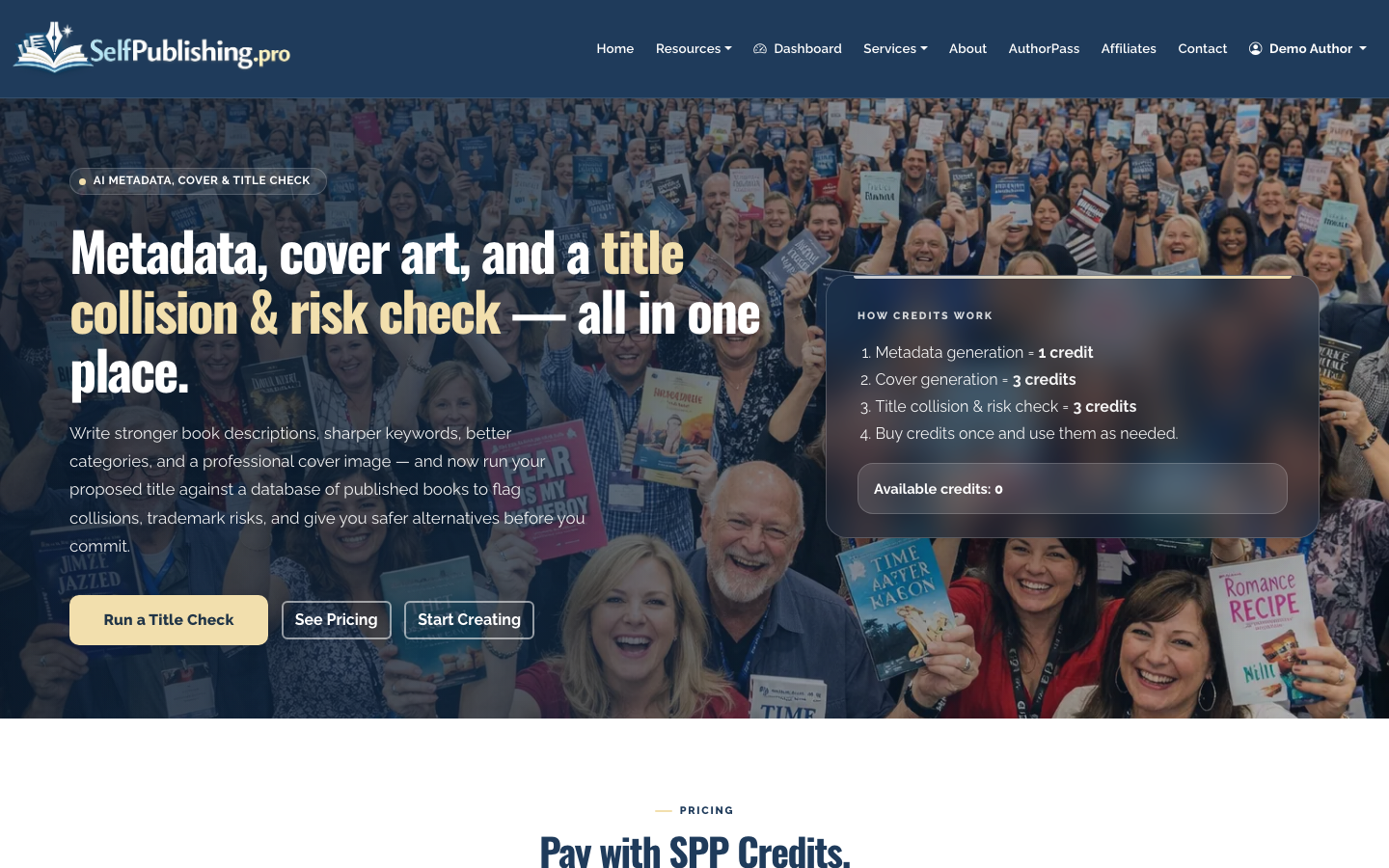
SelfPublishing.pro’s AI Book Tools can help create cover concepts and test title ideas, but final retail covers should still be checked for genre fit, readability at thumbnail size, and print specifications.
Step 4: Start a New Title in KDP
Inside your KDP Bookshelf, choose whether you are creating a Kindle ebook, paperback, or hardcover. Most independent authors publish ebook and paperback first.
Enter the book details carefully:
- Book title and subtitle
- Series name and volume number, if applicable
- Author and contributor names
- Book description
- Publishing rights
- Keywords
- Categories
- Age and grade range, if relevant
This is where many authors rush. Your description, categories, and keywords help Amazon understand where the book belongs. For more context on the whole publishing path, see How to Publish a Book.
Step 5: Write the Book Description for Buyers, Not Just Amazon
Your description should make the right reader want the book. For nonfiction, lead with the problem and outcome. For fiction, establish character, conflict, stakes, and genre promise.
A practical structure is:
- Hook the reader in the first two sentences.
- Explain the premise or transformation.
- Add 3-5 short benefit or story bullets.
- Close with a clear reason to buy now.
SelfPublishing.pro’s AI metadata generator can draft descriptions, keywords, and category ideas, which you can then edit for voice and accuracy.
Step 6: Upload Your Files and Preview the Book
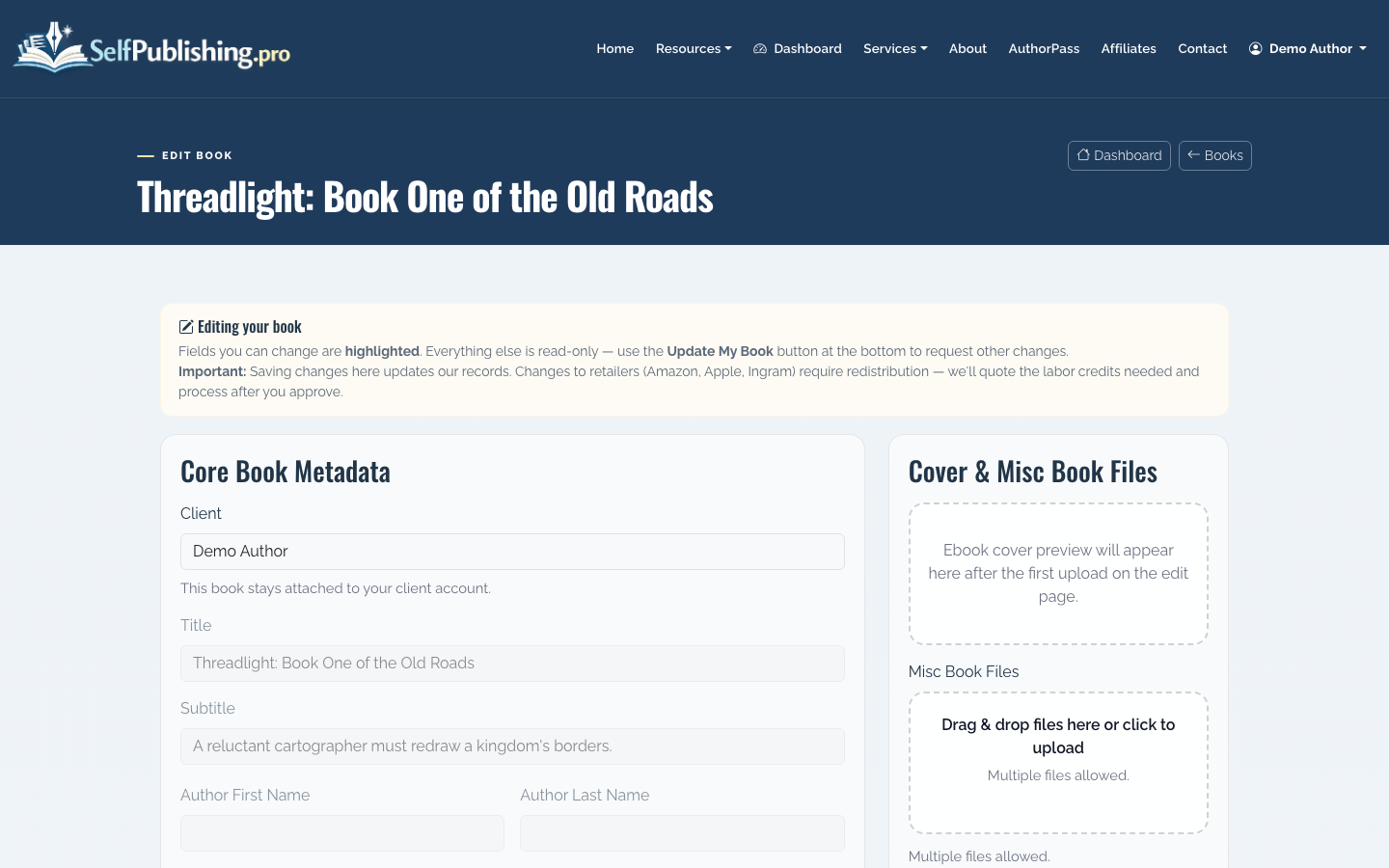
Upload your manuscript and cover files in the KDP setup flow. Then use Amazon’s previewer to check the book before you continue.
Look closely for:
- Broken chapter starts
- Odd spacing or indents
- Missing images
- Low-resolution cover warnings
- Text too close to trim edges
- Incorrect table of contents links
Do not approve the preview just because the upload succeeded. A technically accepted file can still look unprofessional.
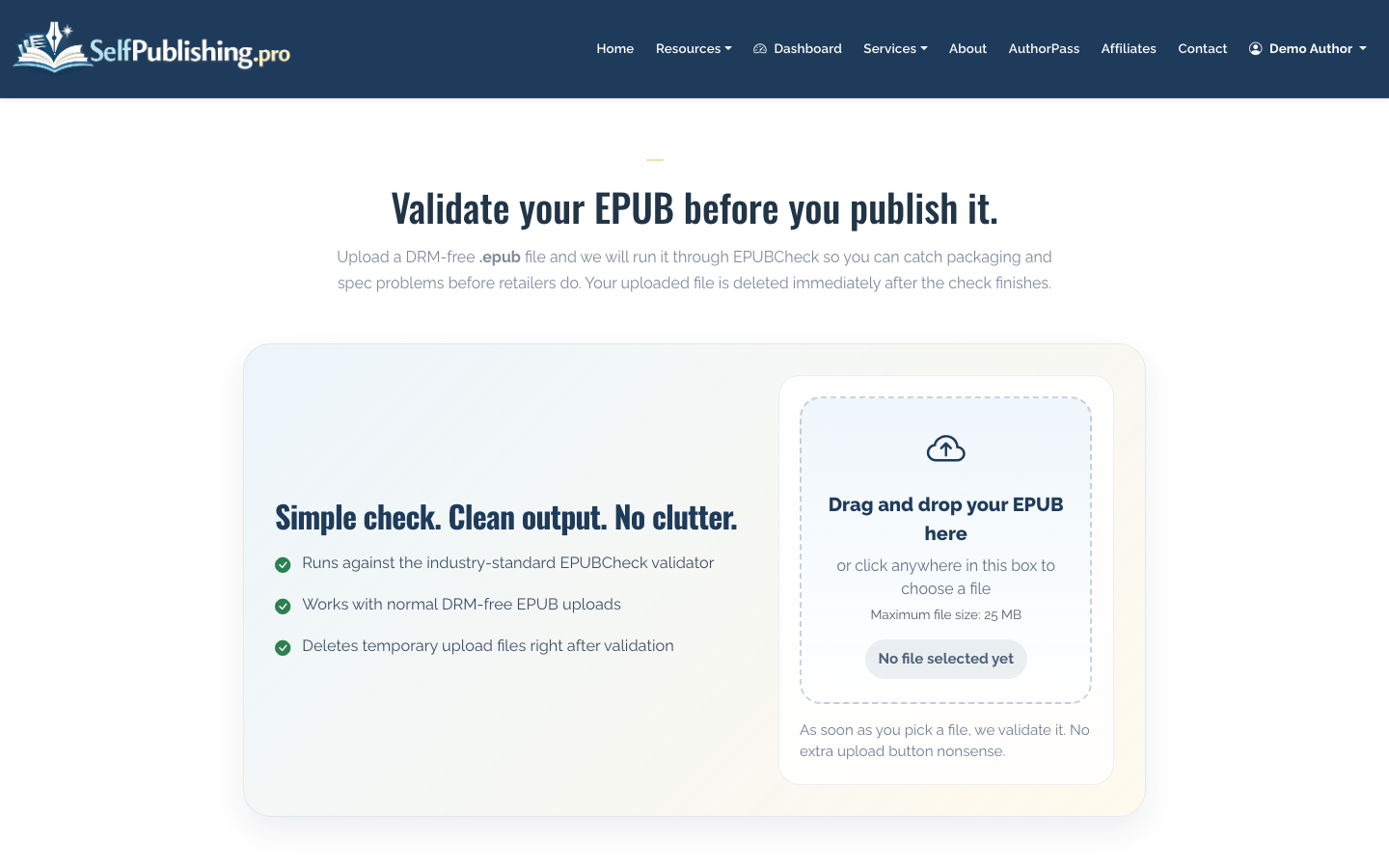
If you are creating an EPUB outside KDP, a validator can catch common formatting issues before retail upload.
Step 7: Set Territories, Pricing, and Royalty Options
For ebooks, KDP usually offers 35% or 70% royalty options depending on price, territory, and delivery costs. Many authors price Kindle books between $2.99 and $9.99 to qualify for the 70% royalty range where available.
For paperbacks, Amazon subtracts printing costs from the list price before calculating royalties. A 300-page paperback cannot be priced like a short ebook and still produce the same margin.
Review:
- Marketplace availability
- List price by country
- Printing cost and royalty estimate
- Whether to enroll the ebook in KDP Select
KDP Select can help with Kindle Unlimited visibility, but it requires ebook exclusivity with Amazon during the enrollment period. That means you cannot sell the ebook on Apple Books, Kobo, Google Play, or most library platforms while enrolled.
Step 8: Publish and Wait for Review
After you submit, Amazon reviews the book. Reviews often complete within a few days, though timing can vary. If Amazon finds file, metadata, rights, or quality issues, you will need to fix them before the book goes live.
Once live, check the Amazon product page yourself. Confirm the cover, description, author name, format options, price, and Look Inside preview.
Step 9: Track Royalties and Decide What Comes Next
KDP reports Amazon sales inside your KDP account. If you also distribute outside Amazon, keep those reports separate or use a platform that consolidates retailer data.
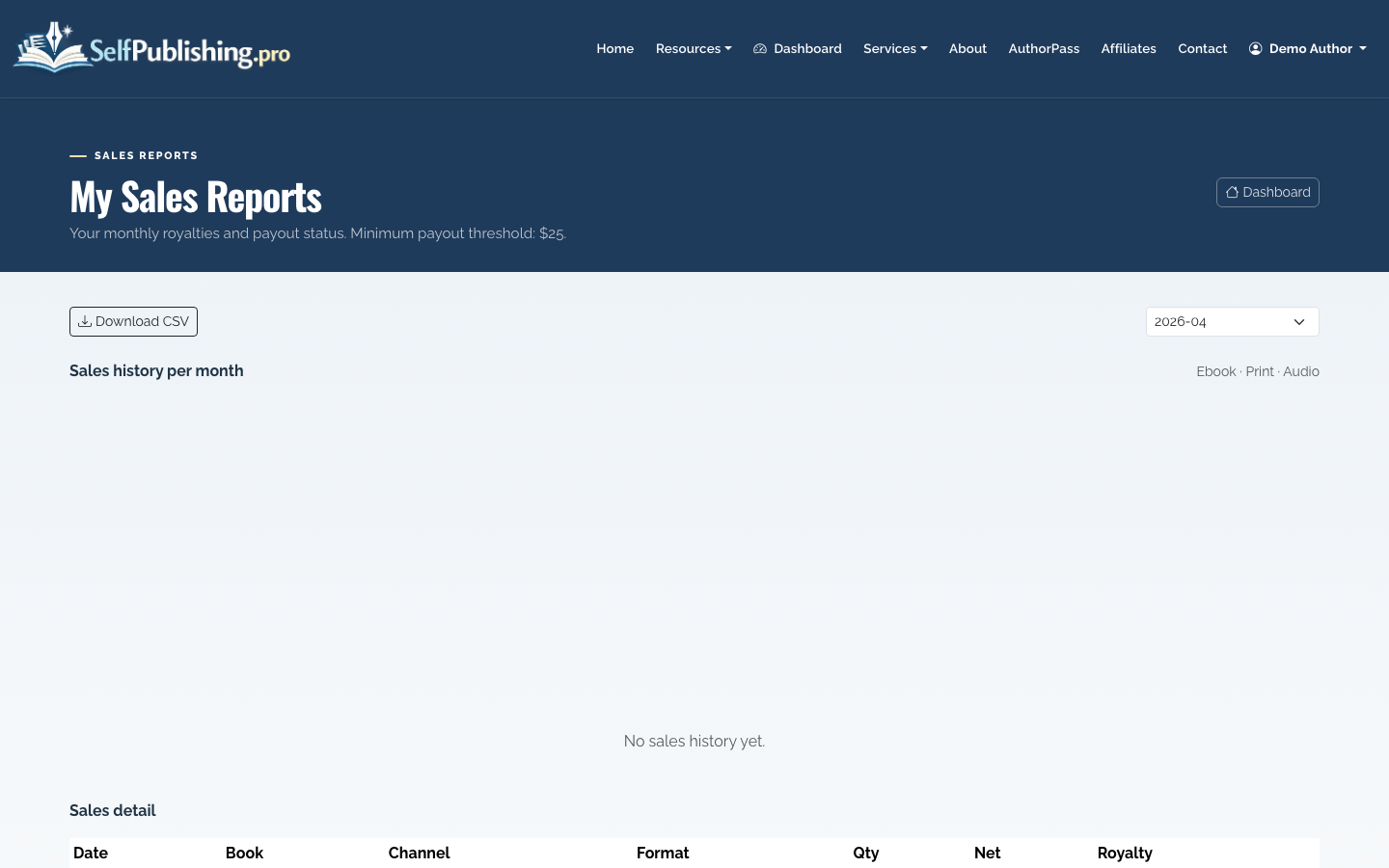
SelfPublishing.pro provides monthly royalty reports with per-retailer breakdowns and spreadsheet downloads, which is useful if you sell through Amazon plus other ebook, print, library, or audiobook channels.
If you want Amazon-specific help, read How to Self Publish on Amazon. If you want broader retail reach, compare Amazon KDP with distribution to 27+ retailers and library partners before you commit to exclusivity.
