Before You Start: Decide What Amazon Should Do
Amazon KDP can publish Kindle ebooks, paperbacks, and hardcovers. For many authors, it is the first place to publish because Amazon has the largest book-buying audience and KDP does not charge an upload fee.
But Amazon is not the whole market. If you want your ebook in Apple Books, Kobo, Barnes & Noble, libraries, or international retailer networks, you will need either direct accounts or an aggregator. SelfPublishing.pro supports distribution to 27+ ebook retailers and library partners, while still letting you use Amazon as a key sales channel.
If you are still choosing your overall publishing path, read How to Self Publish a Book first. If you specifically want the broader Amazon-only version, see How to Publish a Book on Amazon.
How to Self Publish on Amazon in 9 Steps
1. Prepare your manuscript file
Start with a clean final manuscript. For Kindle ebooks, authors commonly upload a DOCX or EPUB file. For print books, you will usually upload a print-ready PDF with the correct trim size, margins, page numbering, and embedded fonts.
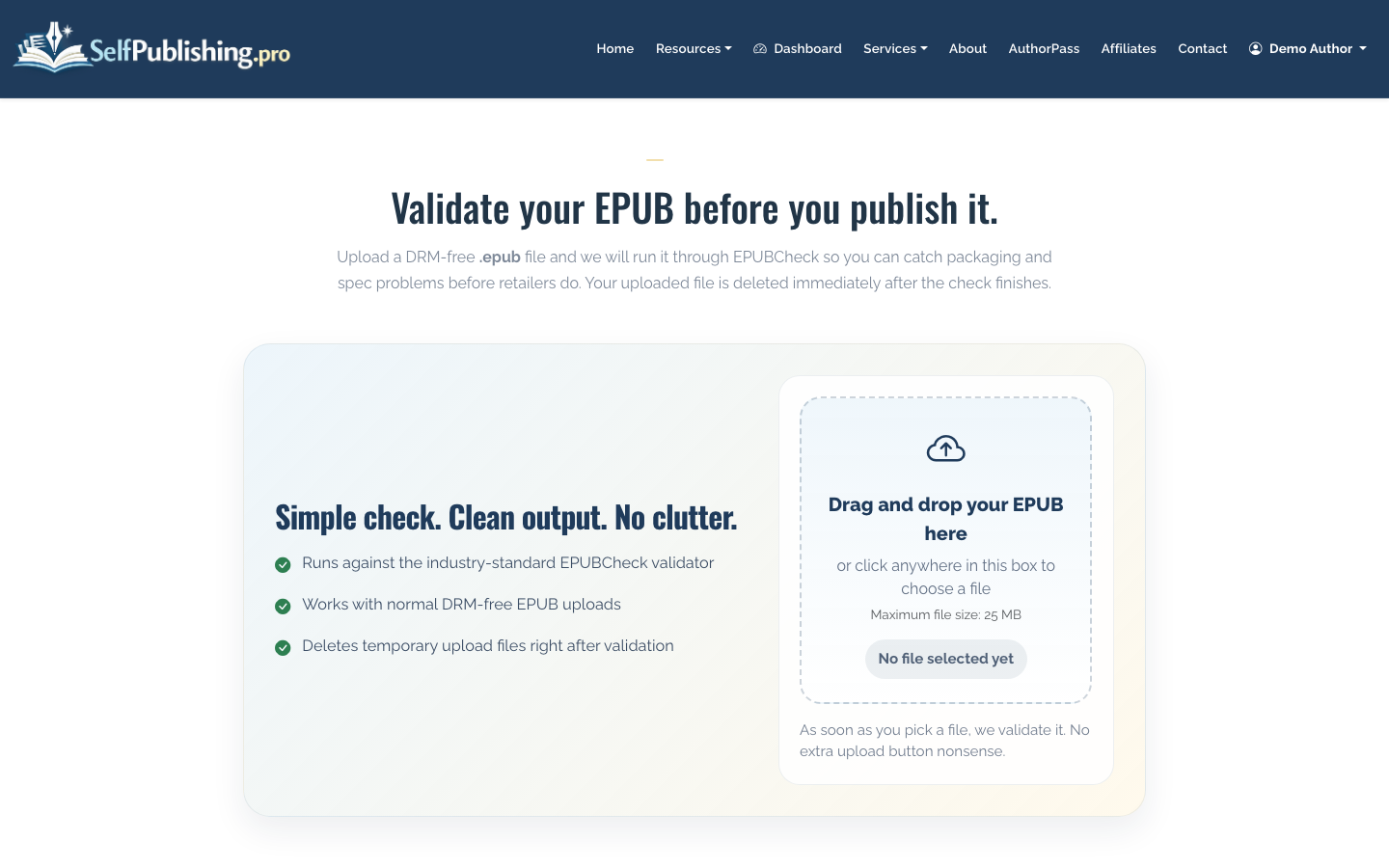
If your file started as a PDF but needs editing before upload, SelfPublishing.pro includes a PDF-to-Word converter. If you already have an EPUB, run it through a validator before you submit it anywhere.
A good pre-upload checklist:
- Front matter includes title page, copyright page, and optional dedication
- Back matter includes author bio, acknowledgments, other books, or mailing list link
- Table of contents works for ebooks
- Chapter headings are styled consistently
- Images are compressed but still sharp
- Print PDF matches the trim size you intend to choose in KDP
2. Create or polish your cover
Your cover needs to work as a tiny thumbnail, not only as a full-size image. For ebooks, you need a front cover. For paperback or hardcover, you need a full wrap cover with front, spine, and back sized to your trim, page count, paper type, and bleed settings.
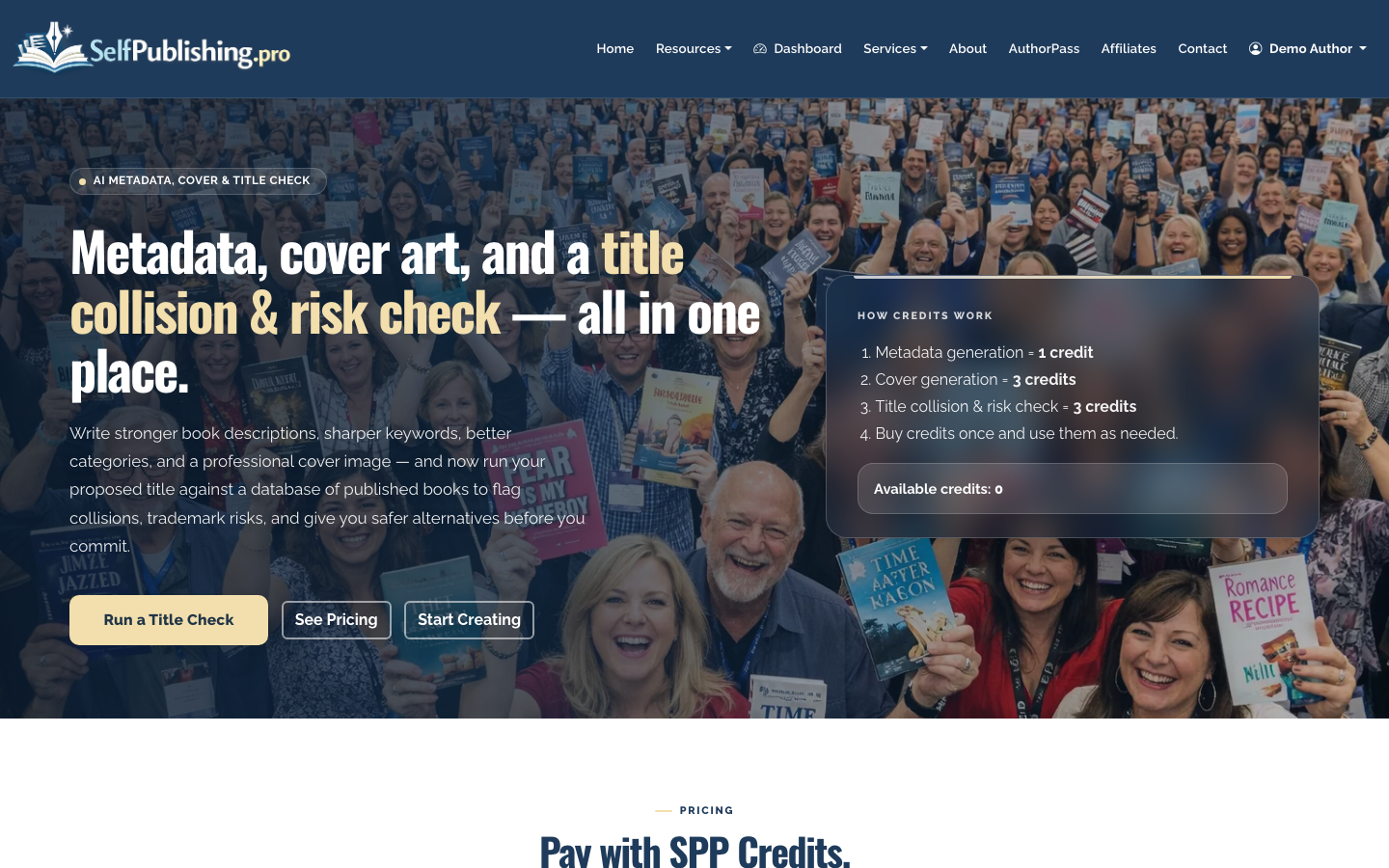
SelfPublishing.pro’s AI Book Tools include an AI cover art generator powered by credits. It is useful for concepting and early design direction, but you should still check genre fit, typography, and print specifications before upload.
3. Set up your publishing account
To publish directly on Amazon, go to Kindle Direct Publishing and create or sign in with your Amazon account. KDP will ask for author/publisher information, tax details, and payment information before royalties can be paid.
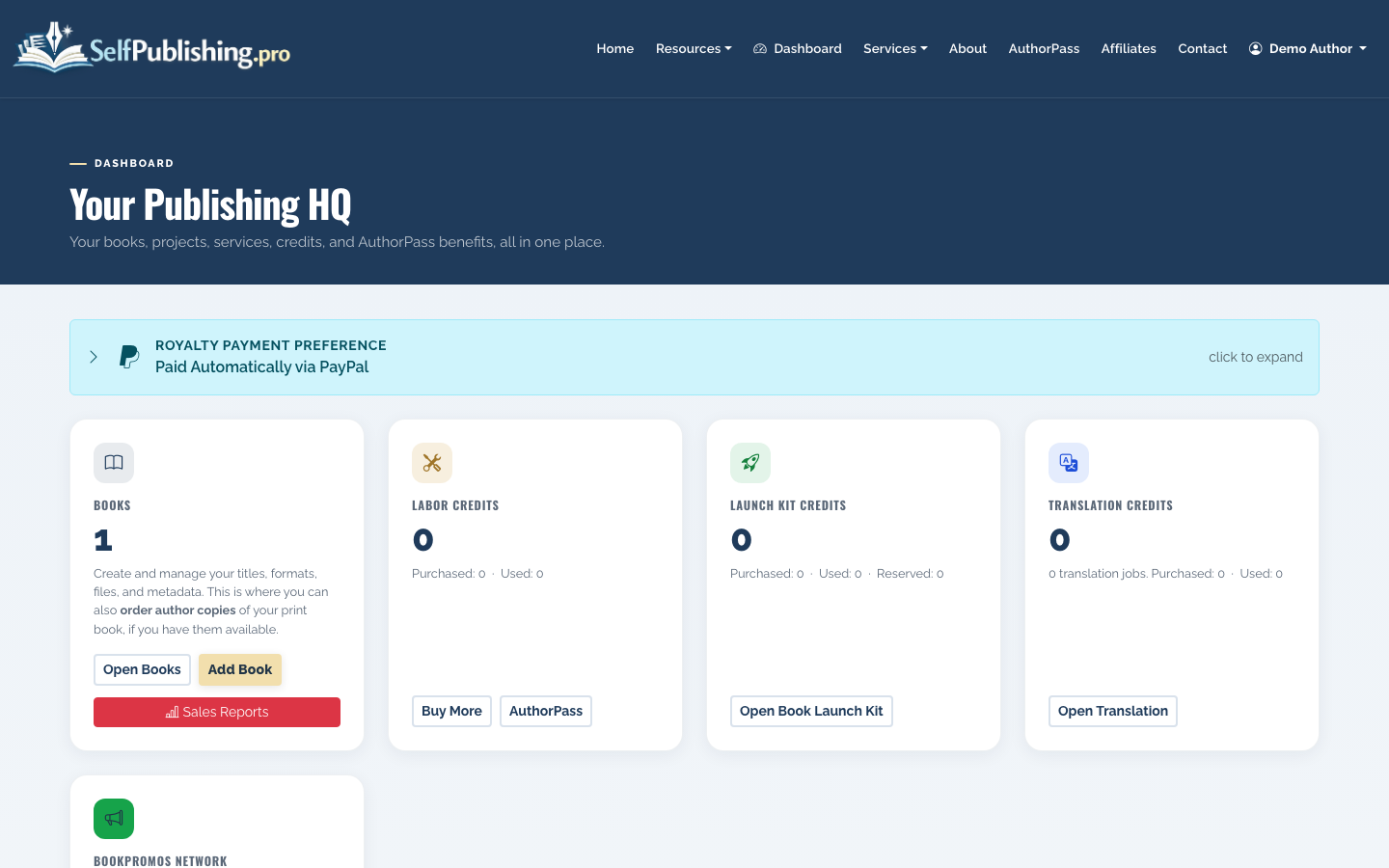
SelfPublishing.pro is different: you can register with email and password or Google OAuth, receive 10 free AI Book Tool credits, and add your book inside the dashboard. From there, you can prepare assets, manage services, and decide whether Amazon-only or wider distribution makes sense.
4. Add your book details
In KDP, you will create a new Kindle ebook, paperback, or hardcover project. You will enter details such as title, subtitle, series, author name, contributors, description, keywords, categories, language, publication date, and publishing rights.
This is where many first-time authors rush. Do not. Your metadata affects search visibility, reader expectations, and conversion.
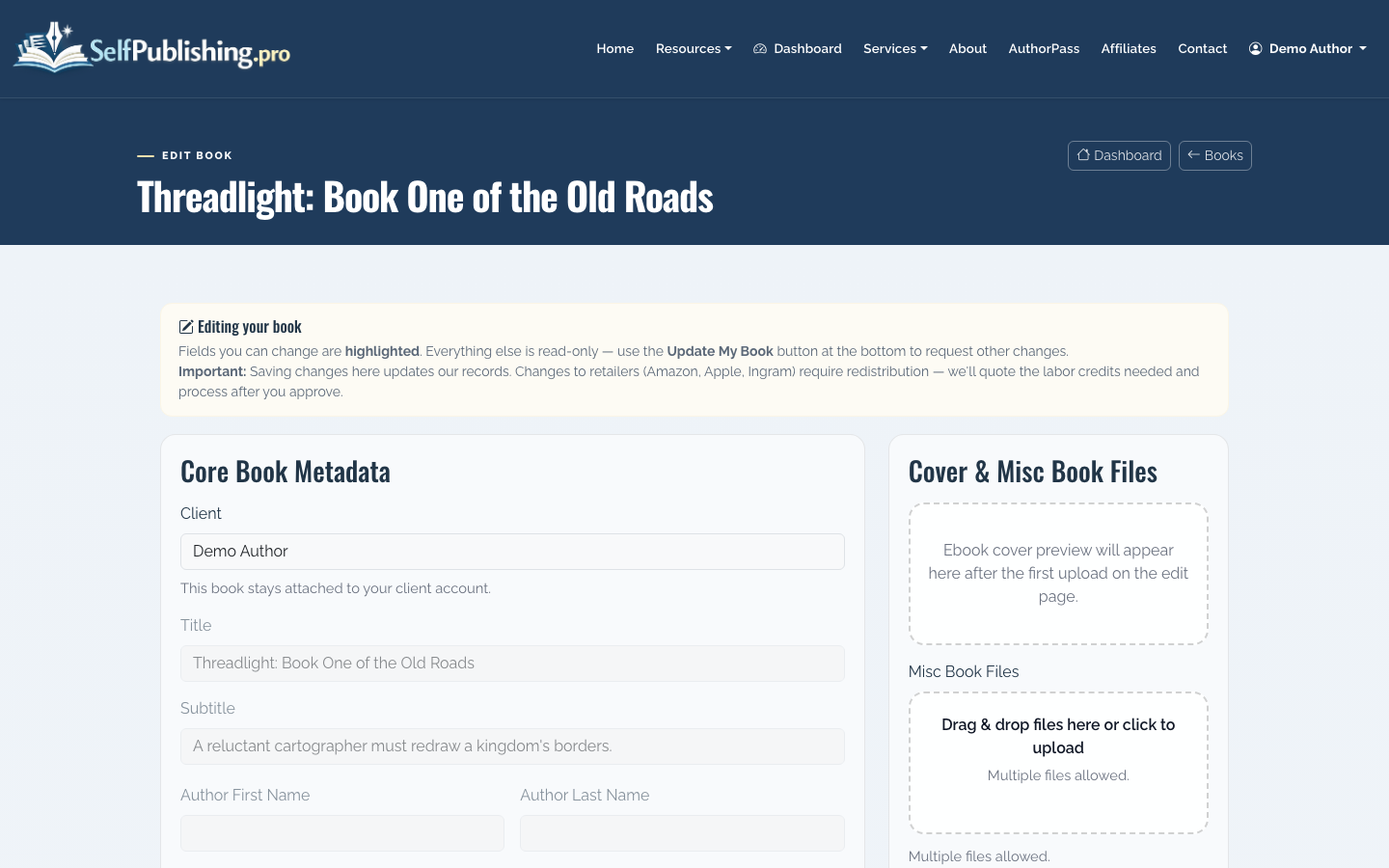
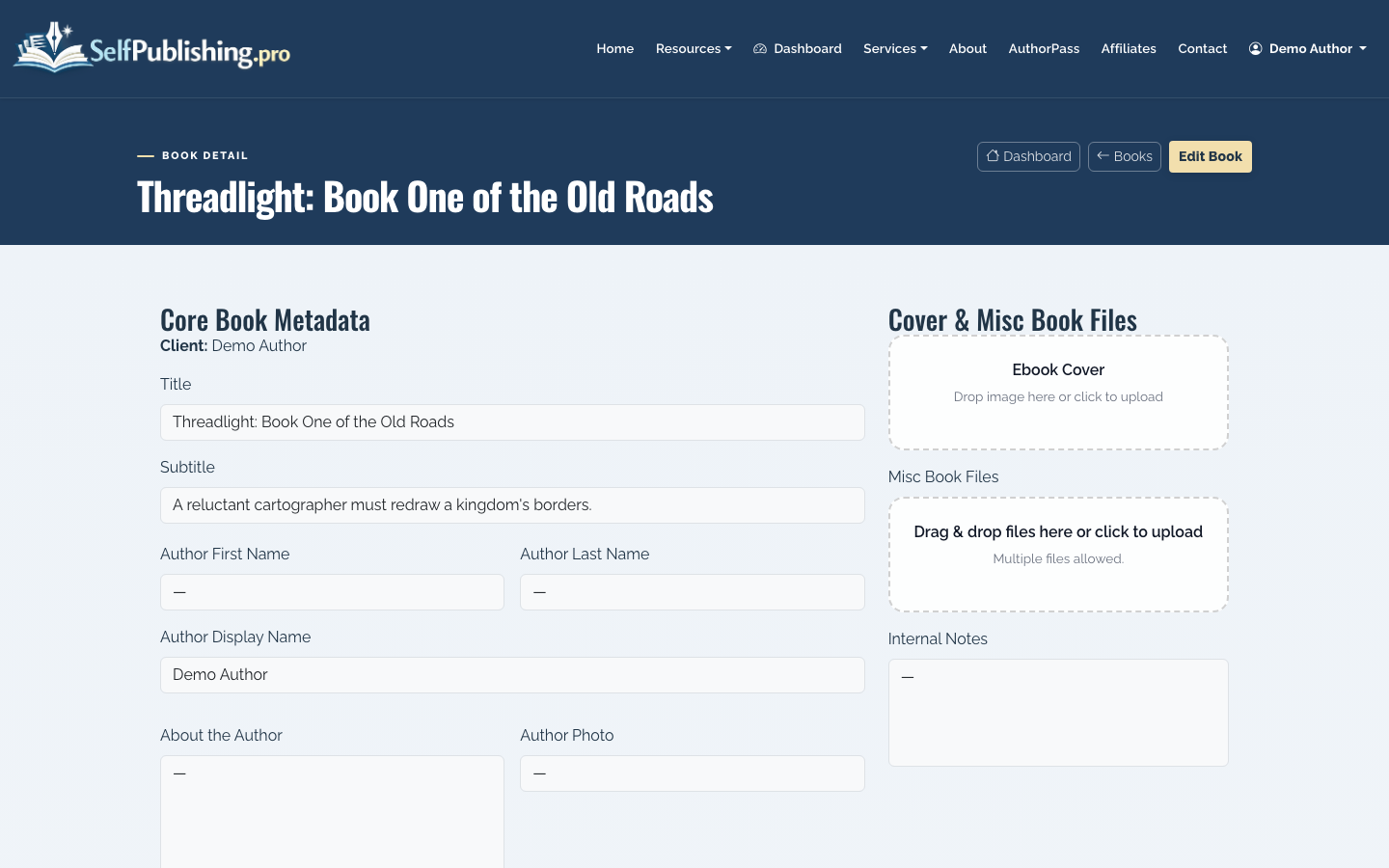
Inside SelfPublishing.pro, the add-book and edit screens let you organize the core metadata before you publish or order services.
Important fields to prepare:
- Title and subtitle exactly as they appear on the cover
- Author name or pen name
- Book description with a strong opening line
- BISAC-style genre/category direction
- Keywords based on reader intent, not vague themes
- Format plan: ebook, paperback, hardcover, audiobook, or a mix
SelfPublishing.pro’s AI metadata generator can help draft descriptions, keywords, and positioning. Treat the output as a starting point, then revise for accuracy and voice.
5. Upload your manuscript and cover
Once your book details are entered, upload the manuscript file and cover file. KDP includes preview tools so you can inspect how the ebook or print book will appear before publication.
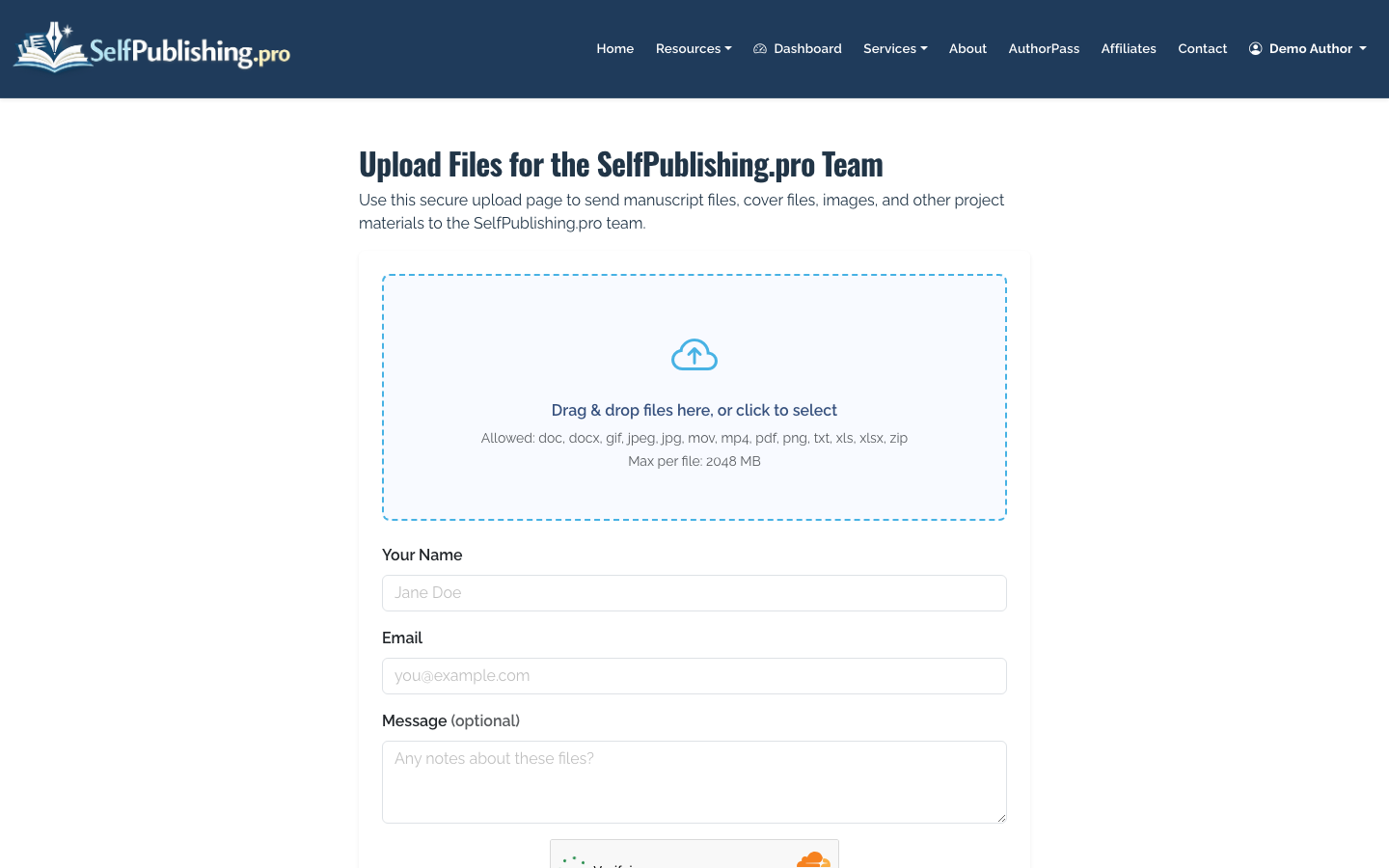
For SelfPublishing.pro projects, you can keep book assets organized inside the book detail page. If the team is helping with formatting, cover, translation, audiobook setup, or distribution, you can also upload project files through the no-login dropbox.
Check these items in the previewer:
- Chapter starts are consistent
- Links work
- Images are not distorted
- No blank pages appear unexpectedly
- Print margins do not cut off text
- Cover text is not too close to trim edges
6. Choose territories, royalties, and price
KDP lets you choose publishing territories and set list prices. Ebook royalty options commonly include 35% and 70%, depending on price, file size, territory, and other eligibility rules. Print royalties are calculated differently because printing costs are deducted.
Do not price only by instinct. Compare books in your category with similar length, format, author platform, and review count. A debut 60-page nonfiction ebook, a 95,000-word fantasy novel, and a full-color workbook should not use the same pricing logic.
A practical starting range for many indie books:
- Short nonfiction ebook: $2.99-$5.99
- Full-length nonfiction ebook: $4.99-$9.99
- Genre fiction ebook: $2.99-$6.99
- Paperback: printing cost plus enough margin to support discounts and ads
7. Decide whether to enroll in KDP Select
KDP Select puts your Kindle ebook into Kindle Unlimited and gives access to certain Amazon promotional tools. The tradeoff is exclusivity: your ebook cannot be sold digitally through other retailers while enrolled.
Choose KDP Select if your strategy depends heavily on Kindle Unlimited page reads, Amazon category visibility, and Amazon-only promotions. Skip it if you want your ebook available through Apple Books, Kobo, Barnes & Noble, library channels, direct sales, or international aggregators.
SelfPublishing.pro is useful when you want Amazon plus wider distribution, because you can manage a broader publishing plan from one place instead of treating KDP as the entire business.
8. Publish, then wait for review
After you approve the preview and confirm pricing, submit the book for publication. Amazon says books can appear in Amazon stores within about 72 hours, though review timing can vary.
Use the waiting period to prepare your launch basics:
- Amazon Author Central profile
- Book description formatting review
- Editorial review blurbs if you have them
- Launch email to your list
- Reader team or ARC follow-up
- Category and keyword monitoring
- Retailer links page if publishing wide
For a broader overview of the whole process, see How to Publish a Book.
9. Track royalties and improve the listing
Publishing is not the finish line. Watch sales, page reads if enrolled in Kindle Unlimited, reviews, conversion signals, and ad performance. If the book is also distributed outside Amazon, you will need a way to compare retailer results.
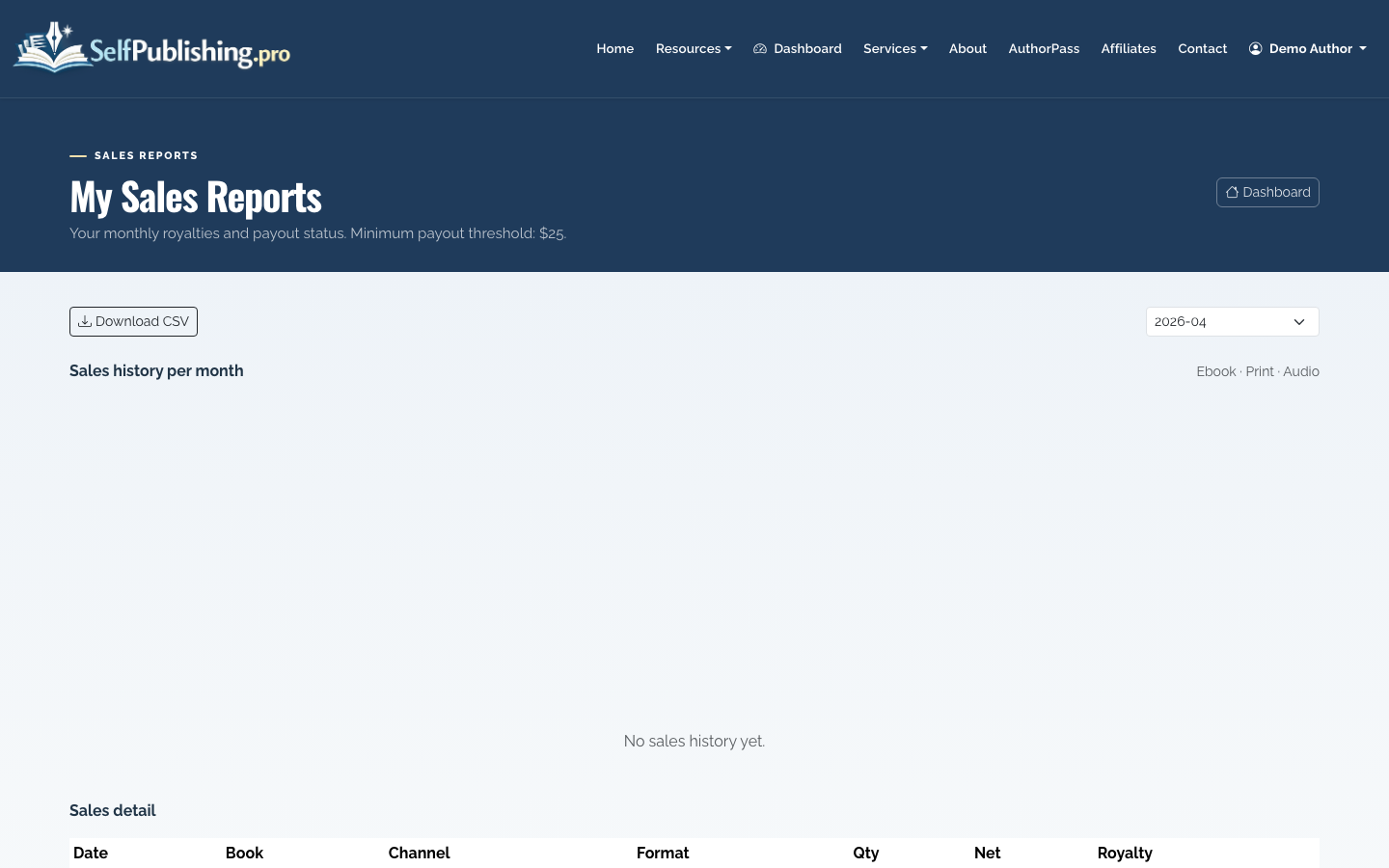
SelfPublishing.pro provides monthly royalty reports with per-retailer breakdowns and spreadsheet downloads. Payouts are available by PayPal by default or bank transfer, with a $25 minimum threshold.
Review your listing after the first 30 days. If traffic is weak, revisit keywords and categories. If traffic is healthy but sales are weak, revisit cover, description, reviews, and price.
Common Mistakes to Avoid
Publishing before the book is actually ready
KDP makes publishing feel fast, which is useful, but speed can hide quality problems. A rushed book can collect poor reviews that are difficult to recover from.
Using Amazon as your only plan by default
Amazon may be your main channel, but it does not have to be your only channel. Wide distribution can matter for libraries, international readers, schools, indie bookstores, and readers who do not buy from Amazon.
Ignoring metadata
The answer to “how do I self publish on Amazon?” is not just “upload a file.” Your title, subtitle, description, categories, and keywords are part of the product. Weak metadata makes a good book harder to find.
Forgetting print economics
Paperback and hardcover pricing must account for printing cost. A beautiful full-color interior may look good but leave very little royalty unless priced correctly.
Where SelfPublishing.pro Fits
You can use KDP directly if you want a hands-on Amazon-only workflow. SelfPublishing.pro helps when you want preparation, tools, and distribution support around that process.
Authors use SelfPublishing.pro to:
- Generate or improve book metadata
- Create cover art concepts
- Validate EPUB files before retailer submission
- Organize book projects and assets
- Distribute ebooks to 27+ retailers and library partners
- Set up print-on-demand through Lightning Source or KDP
- Manage audiobook options through ACX or Findaway
- Review monthly royalty reports across retailers
- Get full-service help when DIY becomes too time-consuming
AuthorPass is available at $50/month or $500/year and includes 15 monthly labor credits plus partner platform benefits. It is best for authors who expect ongoing publishing tasks, not someone uploading one finished book with no future support needs.
