Before You Start
You will need a finished manuscript, a cover image, a book description, pricing, categories, keywords, and an EPUB file. If you only have a Word document, you can still begin, but the ebook will need to be converted and checked before distribution.
For most authors, the practical choice is between publishing only on Amazon KDP or distributing more widely to ebook retailers and libraries. Amazon gives you direct access to Kindle readers. Wider distribution can reach Apple Books, Kobo, Barnes & Noble, library partners, and other storefronts, but it adds more metadata and reporting to manage.
How to Publish an Ebook with SelfPublishing.pro
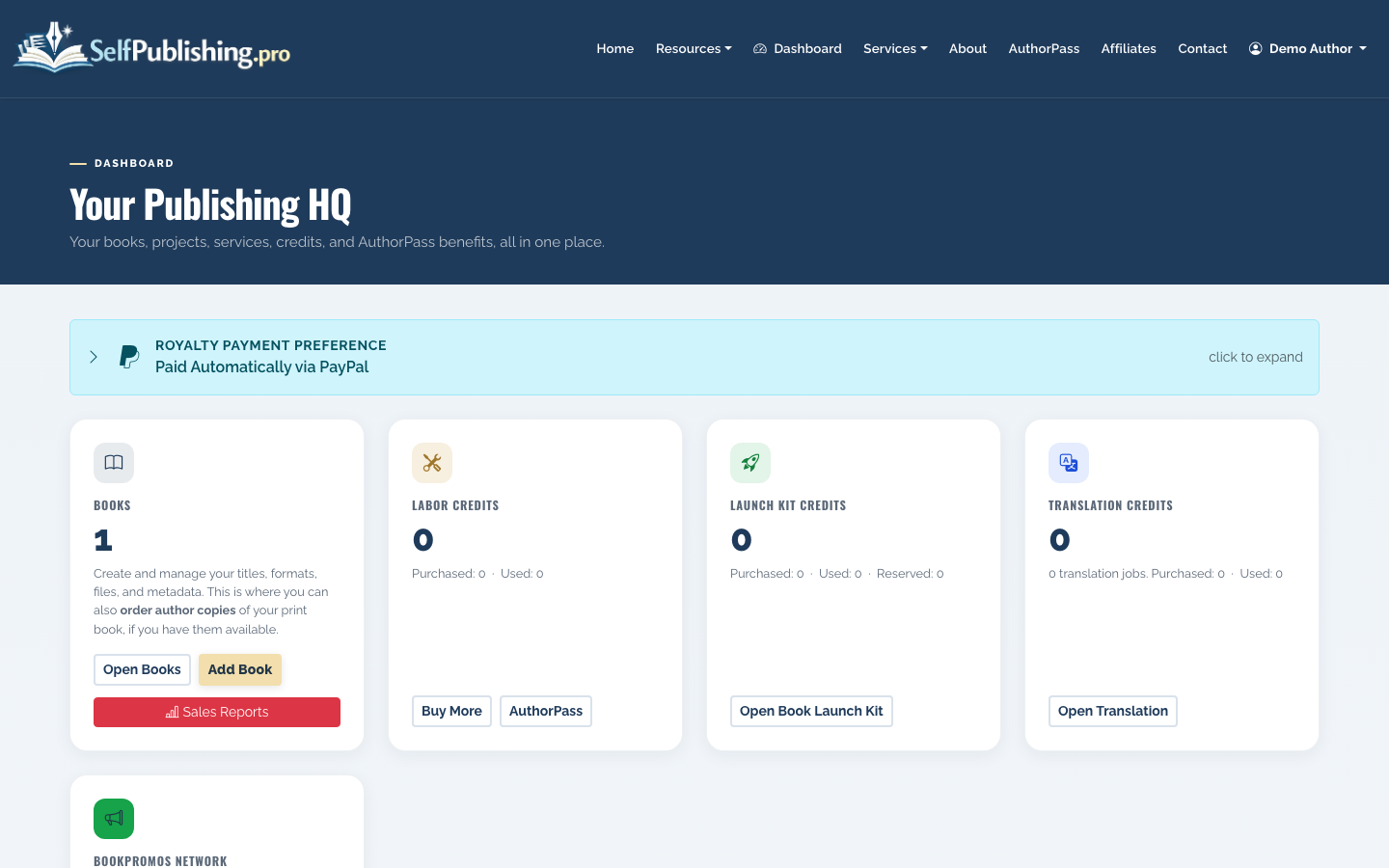
- Create your account and open the dashboard
Sign up with email and password or Google OAuth. New registrations include 10 free AI Book Tool credits, which you can use for metadata help, cover concepts, or a title check.
From the dashboard, you can see your books, credit balance, project activity, and next actions.
- Add your book
Use the add-book workflow to enter the core book details: title, author name, description, genre, and formats. Choose ebook as one of the formats, and add print or audiobook only if those editions are part of your launch plan.
Good metadata matters because retailers use it to understand where your book belongs. A vague description or mismatched genre can make the book harder to place in search and recommendation systems.
- Improve your title, description, and keywords
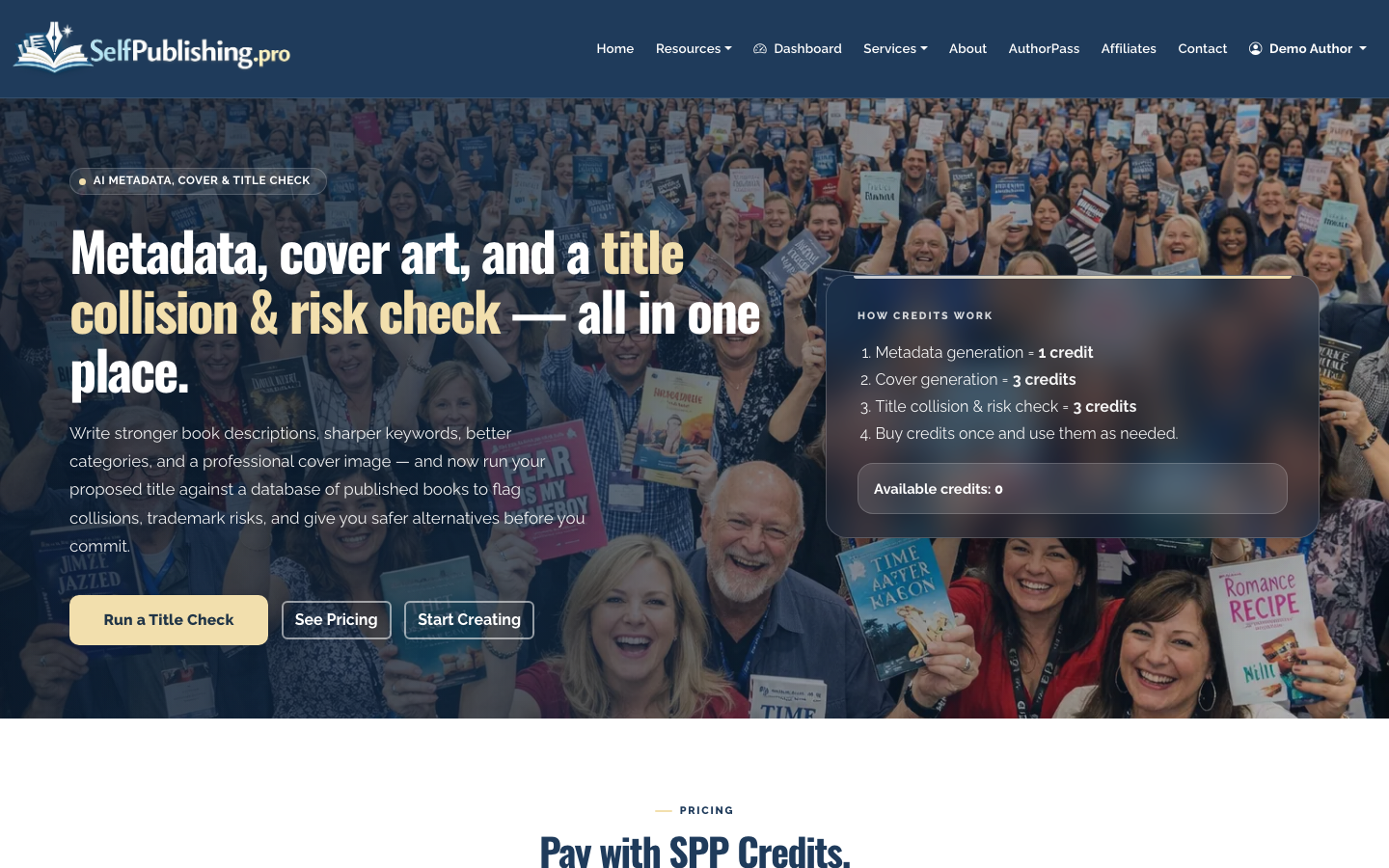
Open the AI Book Tools page if you want help generating metadata, testing title clarity, or creating cover art concepts. The tools are credit-based, so use them where they can save real time: book descriptions, category ideas, subtitle variations, and retailer keyword drafts.
- Upload or prepare your EPUB
Your ebook file should usually be EPUB, not PDF. EPUB reflows across phones, tablets, e-readers, and desktop reading apps. PDFs are fixed-layout files and are usually a poor fit for narrative ebooks unless the book is highly visual.
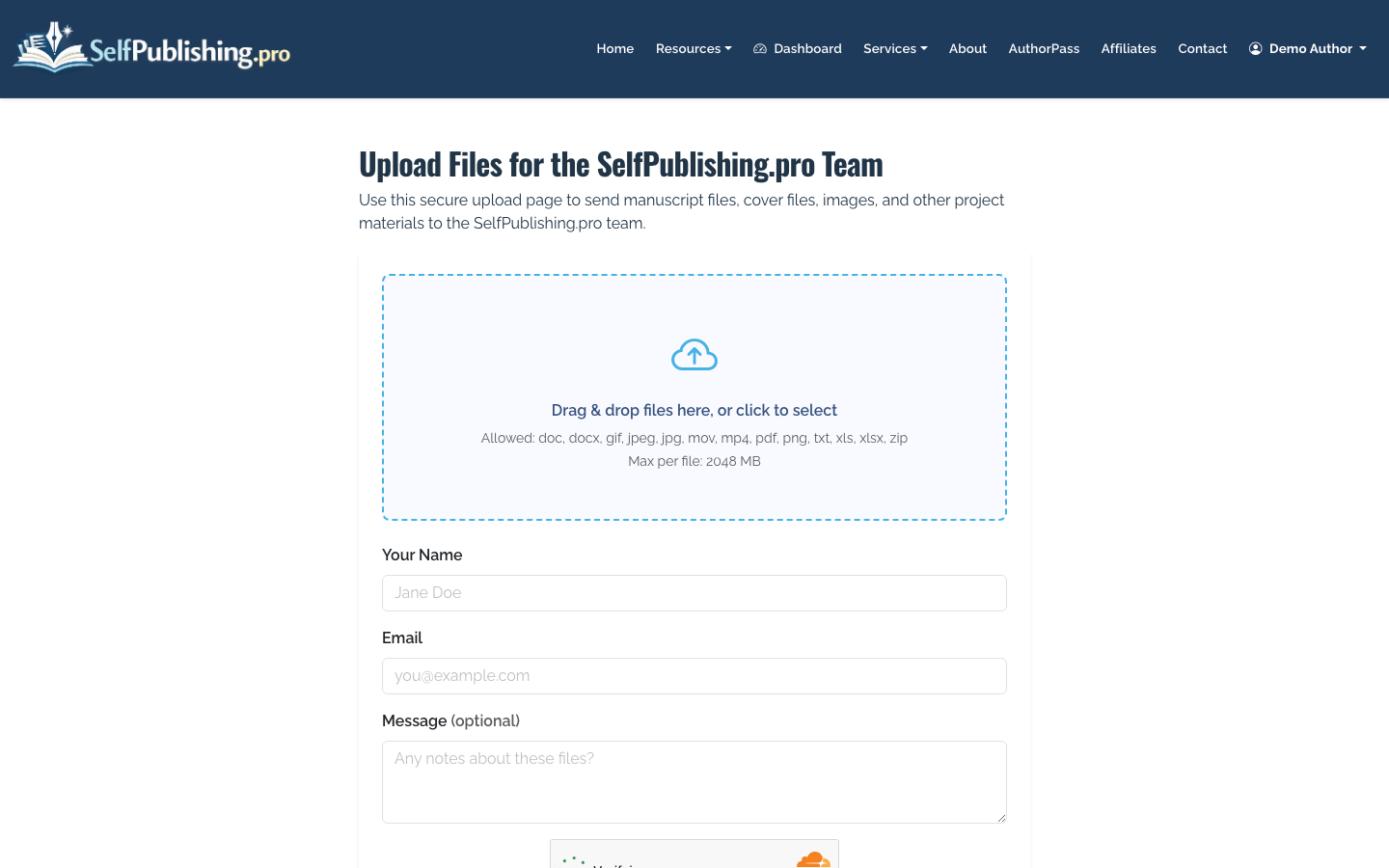
If the SelfPublishing.pro team is helping with formatting, conversion, or production, upload your manuscript and assets through the project-file upload page. This does not require login and is useful when you need to send large files or updated versions.
- Validate the EPUB before distribution
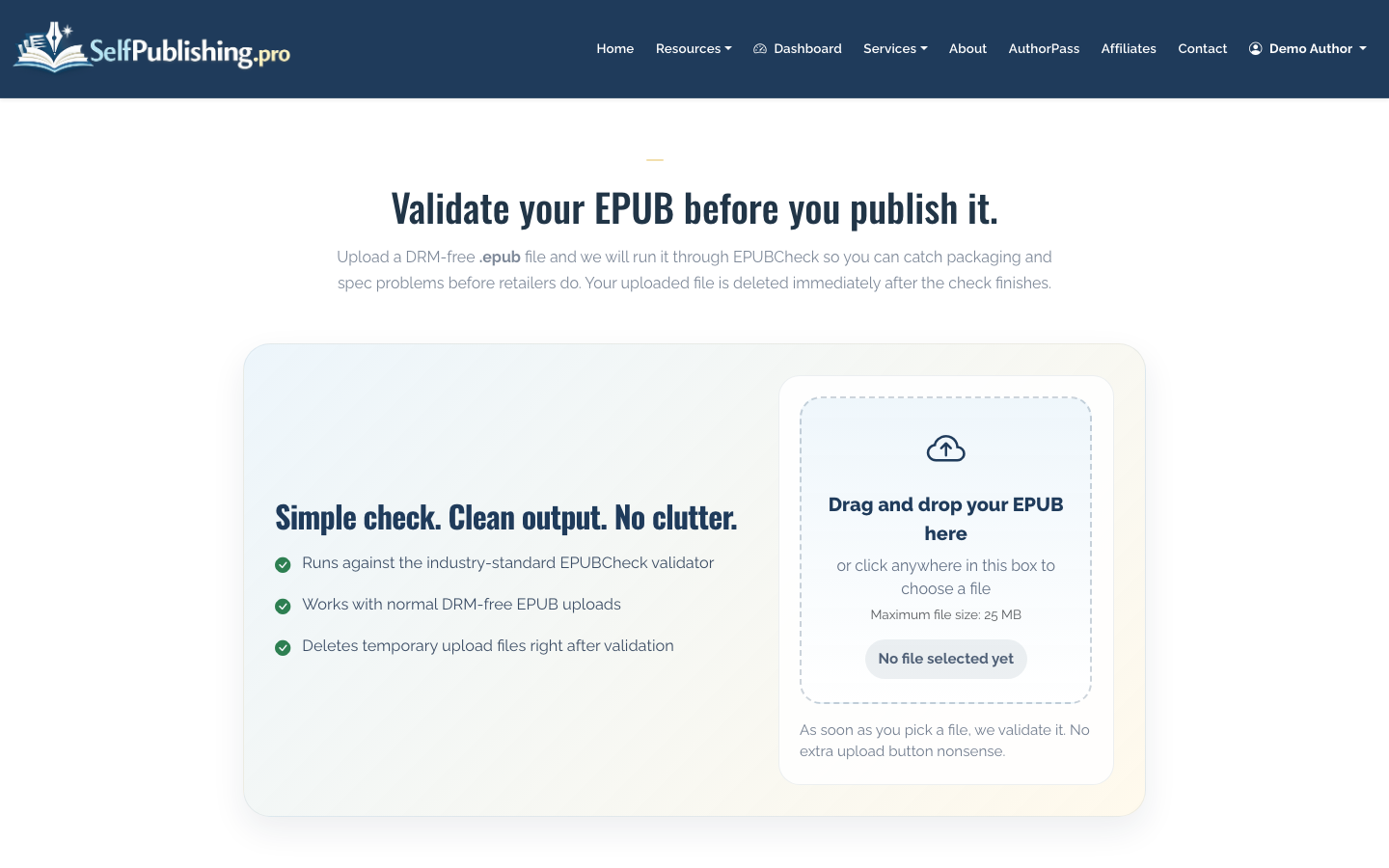
Run your EPUB through the validator before sending it to retailers. Validation checks common technical problems that can cause rejection, such as broken navigation, missing files, malformed markup, or packaging errors.
- Review the book detail page
After your book is created, use the book detail page to review metadata, formats, distribution status, asset files, and available per-format actions. This is the control center for the title.
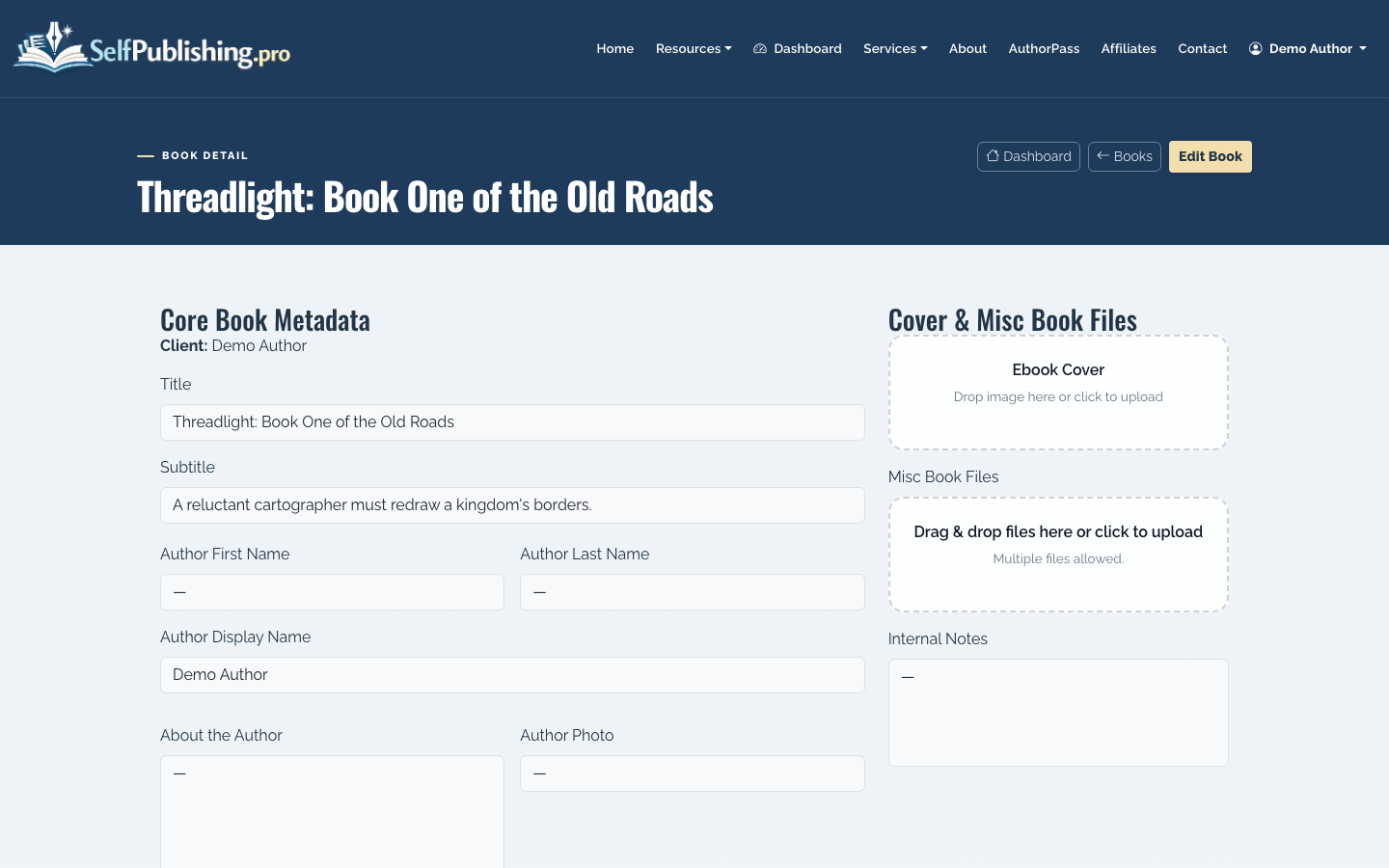
Check the title, author spelling, description, BISAC or genre choices, cover status, and ebook format status before approving distribution. Small errors are easiest to fix before launch.
- Choose distribution channels
SelfPublishing.pro supports ebook distribution to 27+ retailers and library partners. This is the simplest route if you want one setup process and consolidated reporting instead of managing each retailer account separately.
If your question is specifically how to publish an ebook on Amazon, you can also publish directly through KDP. Direct KDP gives you hands-on control of Amazon settings, including Kindle Unlimited enrollment. The tradeoff is that KDP Select requires exclusivity for the ebook during each enrollment period, which limits wide distribution.
For a deeper Amazon-specific walkthrough, see How to Publish a Book on Amazon. If you are still deciding between DIY and assisted publishing, compare this with How to Self Publish a Book.
- Set pricing and launch timing
Choose a price that fits your genre, length, and goals. Many indie ebooks fall between $2.99 and $9.99, but nonfiction, professional, and niche books can support higher pricing when the value is clear.
Avoid changing too many variables during launch week. If you are testing price, description, categories, ads, and cover all at once, you will not know what caused the result.
- Monitor royalty reports
After distribution, use monthly royalty reports to review sales by retailer and format. SelfPublishing.pro reports include per-retailer breakdowns and spreadsheet downloads, which makes it easier to spot where the book is gaining traction.
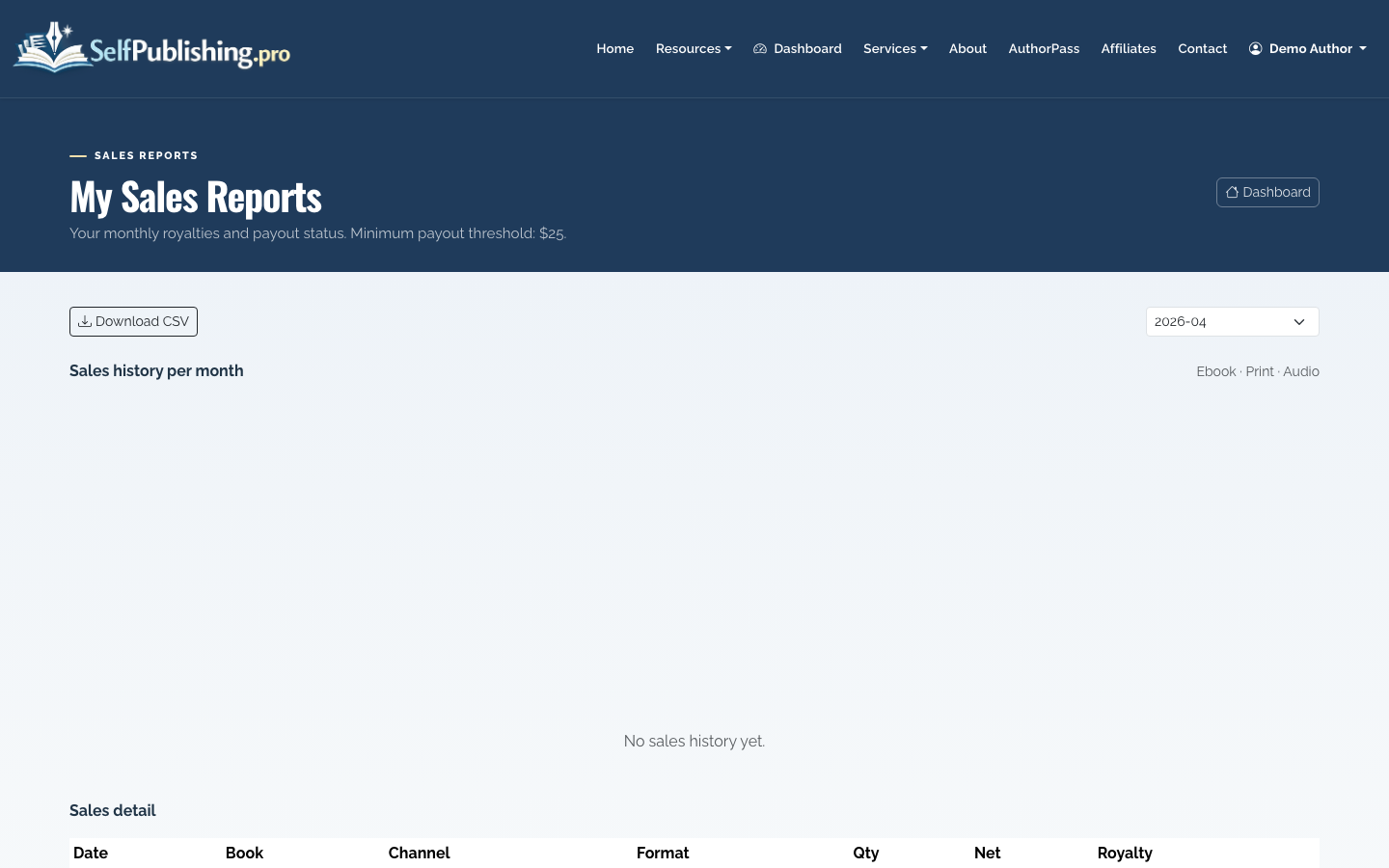
Payouts can be made by PayPal by default or bank transfer, with a $25 minimum threshold. Retailer reporting is not instant, so expect a delay between a reader buying the ebook and that sale appearing in a monthly report.
Ebook Publishing Checklist
Before you publish, confirm that you have:
- Final manuscript proofread after formatting
- EPUB file validated
- Front cover sized for retailer requirements
- Book title and author name spelled consistently
- Description edited for readers, not just keywords
- Categories and keywords chosen for discoverability
- Price selected for your market
- Rights confirmed for all images, fonts, and quoted material
- Distribution plan chosen: Amazon-only, direct retailers, or wide distribution
Common Tradeoffs
Publishing only on Amazon is simpler and may be a good fit if Kindle is your main market. Publishing wide takes more setup, but it avoids depending on one retailer and can help you reach libraries and non-Kindle readers.
Using a platform such as SelfPublishing.pro reduces account management and centralizes reporting. Publishing directly gives you maximum control retailer by retailer, but it also means you are responsible for every upload, correction, tax form, and report download.
If you plan to publish print or audiobook editions later, keep the ebook metadata clean and reusable. Your ebook launch often becomes the foundation for the full book record across formats. For the broader publishing process, see How to Publish a Book.
